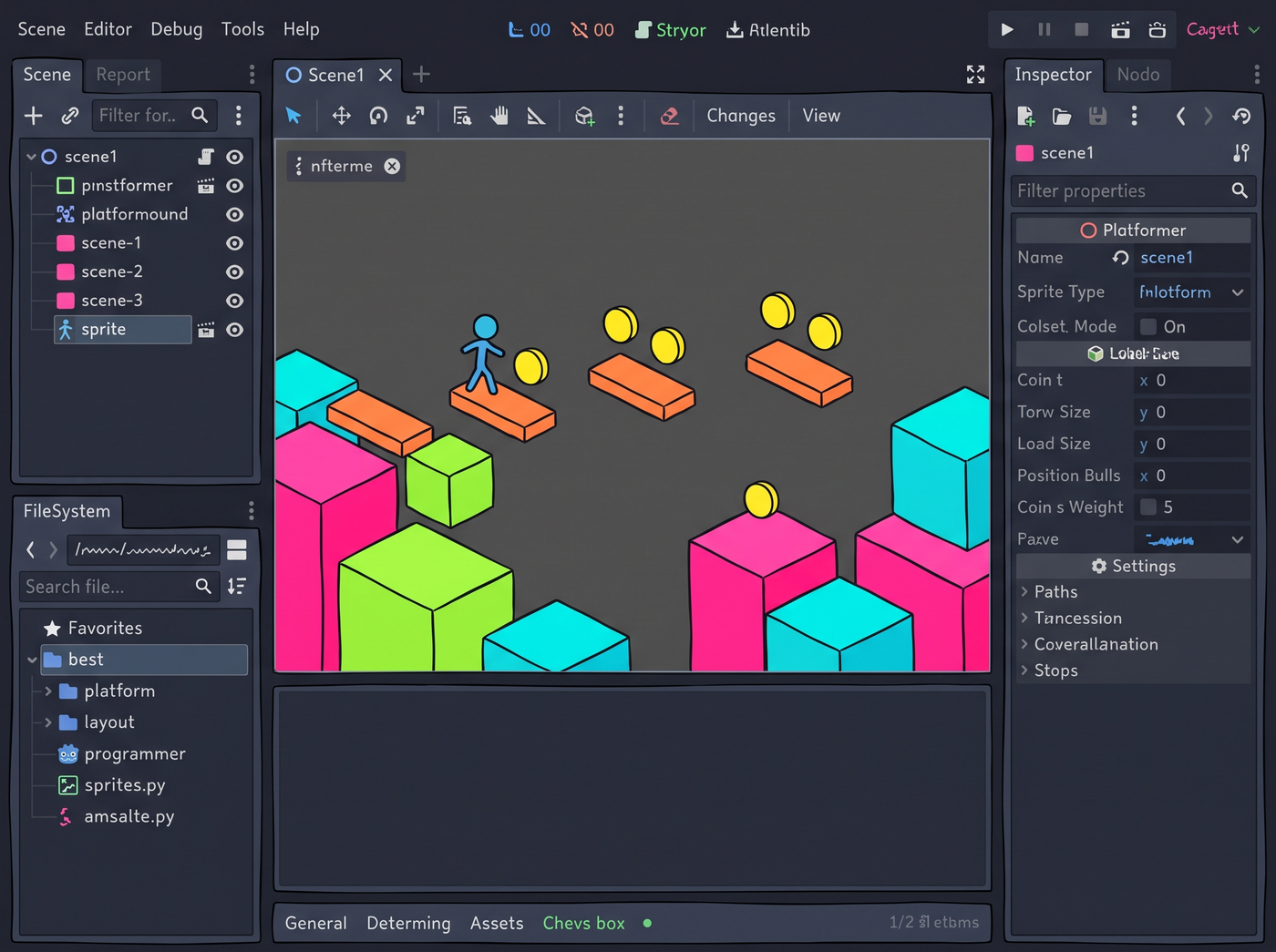
Why Godot is great for programmer art
Godot's design philosophy aligns naturally with the programmer-art approach. The engine's 2D pipeline is first-class, its node-based structure makes it easy to assemble objects from simple parts, and the built-in theme system means you can build a complete UI without importing a single external asset.
Godot's open-source nature and active community also mean there are tons of free tutorials and assets for working procedurally — shaders, tools, and plugins that fit right in with a code-first approach to game development.
2D art built from nodes
The most Godot-native approach to programmer art is to build visuals out of basic nodes. You'd be surprised how much you can do with just a few node types:
- ColorRect — solid-color rectangles for platforms, walls, UI panels, and backgrounds
- Polygon2D — custom shapes for anything that isn't a rectangle
- Line2D — strokes, outlines, trails, and rope/chain effects
- CPUParticles2D — particle effects for impacts, ambience, and feedback
- Label — text-based UI and even game elements (think ASCII art games)
- AnimatedSprite / SpriteFrames — for when you do have sprites, or for frame-by-frame animation of simple shapes
Combine these nodes hierarchically and you can build quite complex visuals entirely within the editor — no external art tools needed. The node structure mirrors the logical structure, which is how programmers think anyway.
Theme system for UI
Godot's built-in theme system is one of its most underappreciated features for programmers. You can define a complete UI look using only colors, borders, and font settings — no button textures or icon art required.
The default Godot UI style is instantly recognizable, but with a few changes you can make it feel like a deliberate design choice rather than "default engine UI":
- Pick a consistent color palette and apply it to all control types
- Use flat colors instead of gradients and bevels
- Increase padding for a more modern, spacious feel
- Pick one or two font sizes and weights — don't mix too many
- Add subtle borders or outlines to define UI elements
Visual Shaders
Godot's VisualShader node graph is perfect for programmer artists. It uses the same node-based logic as the rest of the engine, so the interface feels familiar. You can create surprisingly effective shaders without writing a line of code.
Some high-value shader ideas for programmer art:
- Outline shaders — make every sprite or object pop with a clean border
- Palette swap shaders — use a single sprite and recolor it with shader parameters for variations
- Noise textures — procedurally generate surface detail without drawing it by hand
- Wave/distortion effects — add motion and life to otherwise static objects
- Screen shaders — color grading, vignette, and film grain for overall mood
The Godot Shaders website has hundreds of community-shared shaders you can drop directly into your project. Start from a working example and tweak the parameters — much faster than writing from scratch.
2D animation the easy way
Godot gives you several ways to animate simple art without traditional frame-by-frame drawing:
- Tween animation. Move, scale, rotate, and fade nodes over time. Great for UI motion, simple object animations, and transitions.
- Skeletal animation with Polygon2D. Use Skeleton2D and Bone2D to rig simple shapes for animation. Less work than drawing every frame.
- Physics-based animation. Let RigidBody2D and joints do the work. Good for environmental objects, ropes, and ragdoll effects.
- Shader-driven animation. Animate vertices, UVs, or colors in the shader itself. Perfect for things like water, fire, or energy effects.
3D in Godot
While Godot is primarily known for 2D, its 3D capabilities are solid — and for programmer-art purposes, the same primitive-assembly approach works:
- MeshInstance3D with primitive meshes — cubes, spheres, cylinders, and planes built in
- CSG nodes — Constructive Solid Geometry lets you build more complex shapes by adding and subtracting primitives
- StandardMaterial3D — flexible material system with plenty of parameters to tweak
- WorldEnvironment — fog, sky, and post-processing for atmosphere
The CSG system is particularly useful for programmer artists — you can build surprisingly detailed environments using only boolean operations on basic shapes, all inside the editor.
Scripting visual effects
One of Godot's greatest strengths for programmer-art workflows is how easy it is to create visual effects with code. A few lines of GDScript can produce effects that would take hours to animate by hand.
# Simple bob animation in GDScript
extends Node2D

var bob_height = 4.0
var bob_speed = 2.0
var base_y = 0.0

func _ready():
    base_y = position.y

func _process(delta):
    position.y = base_y + sin(Time.get_ticks_msec() * 0.001 * bob_speed) * bob_height
Patterns like this — sine wave motion, pulsing scale, rotation, color shifts — can be applied to almost any object to add life. Build a library of simple motion scripts and reuse them everywhere.
Tilemaps and level art
Godot's TileMap node is a powerful tool for building levels quickly, and it works great with simple programmer-art tiles. You don't need a detailed tileset — even solid-color tiles can create readable, playable levels.
Some tips for making simple tile-based levels look good:
- Use 2-3 shades of your ground color for variation (dark, medium, light)
- Add a top-edge highlight tile to make surfaces read clearly
- Use an outline or shadow color at the bottom of tiles for depth
- Scatter 1-2 simple decoration tiles (dots, lines, shapes) for visual interest
- Keep the tile size small (16x16 or 8x8) — smaller tiles look more detailed even if each one is simple
Putting it together: a 2D platformer example
-
1
Build the world from ColorRects and Polygon2Ds
Use solid-color shapes for platforms, hazards, and collectibles. Assign each type a distinct color.
-
2
Add the player as a capsule or rectangle
A simple shape with a contrasting color. Add a subtle bob or pulse animation with a tween.
-
3
Apply an outline shader to all game objects
One shader that adds a 1-2 pixel border around everything. Instant visual cohesion.
-
4
Add particle effects for feedback
Particles on jump, land, collect, and hit. All using simple circles or squares as particles.
-
5
Build the UI with the theme system
Buttons, health bars, and menus using only styled controls — no imported art.
-
6
Add screen effects
Camera shake on impact, a subtle vignette, and color grading for mood.